How to Manage Bookings
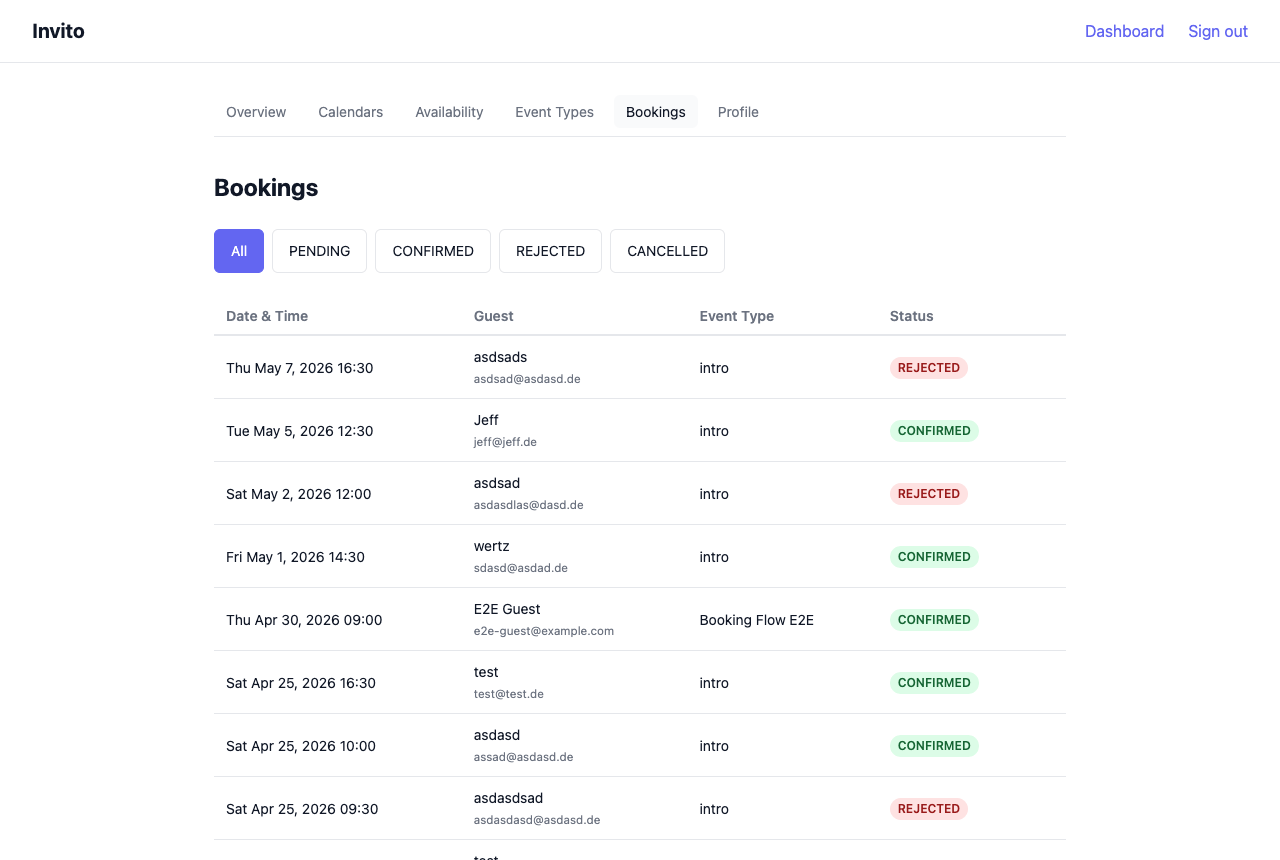
The bookings list gives you an overview of all booking requests across your event types. Use it to track pending requests and review your booking history.
Prerequisites
- You are logged in to your Invito dashboard.
Viewing bookings
- Go to Dashboard → Bookings.
The list shows your most recent bookings ordered by meeting time (newest first), including:
- Guest name and email address
- Date and time of the meeting
- Event type
- Current status
- Any note the guest provided
Filtering by status
Use the status filter at the top of the page to narrow the list:
| Status | Meaning |
|---|---|
| PENDING | Guest has submitted a request; waiting for your confirmation |
| CONFIRMED | You confirmed the booking; a calendar event has been created |
| REJECTED | You rejected the booking via the email link |
| CANCELLED | The booking expired before you acted (TTL passed) |
Click a status tab to filter, or select All to see every booking.
Acting on pending bookings
You confirm or reject bookings via the email links sent to you when a guest books — you do not act on them through the dashboard. The dashboard is read-only and for reference only.
To receive the email again, ask the guest to rebook. There is currently no "resend notification" button.
Automatic cancellation
PENDING bookings that are not acted on within the configured TTL (default: 24 hours, set by INVITO_BOOKING_TTL) are automatically moved to CANCELLED by a background process. A cancellation email is sent to the guest.